Showing posts with label Software. Show all posts

Monday, August 15, 2011

The Best Web Browser and Faster

The browser debate is pretty heated on all platforms, It's fast, easy to use, has a great developer community, and even handles failure with grace.

Yes, Google Chrome is the best web browser.
Download Google Chrome.


Features :
  • Tabbed browsing with pin-able tabs and regular tabs that are easy to reorganize.
  • Supports all kinds of extensions so you can add new features developed by third parties.
  • Pretty much all of your data can be synced to Chrome on any other computer using your Google account.
  • Fast page rendering and JavaScript engine.
  • Chrome "Omnibar" allows you to type in URLs or search from the same place.
  • Customizable search shortcuts let you search sites without the need to visit them first.
  • Maintains a simple, straightforward interface.
  • The Chrome Marketplace allows you to "install" webapps to Chrome and find handy extensions.
  • Automatically recognizes web content that's not in your native language and offers to translate it for you.
  • "Incognito Mode" for private browsing.
  • Choose from a variety of themes, or make your own.
  • Each tab is isolated, so tabs can crash but it won't affect the entire browser if they do. Same goes for plug-ins.
  • Plenty of privacy preferences to keep Chrome from tracking what you do (which it does).
  • Chrome will automatically update to a new version as soon as it's available. That update will be active upon restarting Chrome.
  • Safe browsing helps warn and protect you from phishing attacks and malicious web sites.
  • URL-based settings pages so you can send people links to settings pages or just enter them in yourself, manually.

Chrome could stand to improve where it already thinks it excels. I feel as though Chrome has become progressively less stable and reliable. While it's true that the browser crashes infrequently, they can't say the same for individual tabs. Sometimes tabs crash for seemingly no reason. Chrome does well on features, frequent unobtrusive updates, and a good developer community, so it really just needs to concentrate on working as well as possible. It's a great browser when it does what it's supposed to do, so more stability, speed, security, and so on are all welcome. Especially stability.

In MAYA 0 Comments | Readmore...

Sunday, August 14, 2011

Barcode Label Maker Software

Healthcare is one of the most established industries that to a great extend depend upon barcodes technology to influence business processes. Simple and easy to use barcode label maker software provides complete healthcare industry bar code labeling solutions thus offering a helping hand in hospitals to design barcode labels to maintain patient's records and case sheets, track and automate medical equipments and product details, check medical equipment status, and to manage data quickly and accurately.


Barcodes play a significant role in healthcare and have proved to be extremely beneficial in each and every department of the health care industry. Cost effective and efficient barcode labeling software is featured with advanced barcode system designing view facility which uses barcode designing objects like Pencil, Text, Line, Pictures, Ellipse and many more to create the appropriate customized barcodes used in the healthcare sector.

Barcode creator software offers facility to generate multiple barcode lists useful in labeling healthcare products, healthcare equipments and medicines in the simplest way.

source : http://www.generate-barcode.com/generate-barcode/healthcareindustry-barcode.html
In MAYA 0 Comments | Readmore...

How to extract files .exe

How does how you extract the files with .exe extension?
questions that often arise when I first started to learn computer first.

whether .exe file can still be edited again as we edit the file. doc,. mp3, ...?
Yes the answer is CAN !

Now all that has been answered, and some of them (listed below) I've ever edited.


one of the many software to extract the universal extractor.

Universal Extractor is a program that can extract files from any type of archive, whether it's a simple zip file, an installation program, or even a Windows Installer package (.MSI)
http://legroom.net/scripts/download.php?file=uniextract16
Download UniExtract Installer (4.98 MB) Version 1.6

if you want to download from the previous version go here http://download.c1pher.com/archive/
This program can read files berextensi:
7-zip archive = .7z, .exe
ACE archive = .ace
ARC archive = .arc
ARJ archive = .arj, .exe
ASpack compressed file = .exe
BIN/CUE CD-ROM image =.bin, .cue
bzip2 archive=.bz2, .tbz2, .tar.bz2
CPIO compressed file=.cpio
Debian package=.deb
DiscJuggler CD-ROM image=.cdi
Encoded files=.b64, .uu, .uue, .xx, .xxe, .yenc, .ntx
Gentee package= .exe
gzip archive=.gz, .tgz, .tar.gz
IMG floppy disk image=.img
Inno Setup package= .exe
Installer VISE package= .exe
InstallShield Cabinet archive=.cab, .1, .lib
InstallShield package=.exe
ISO 9660 CD-ROM image=.iso
KGB archive=.kgb, .kge,
LZH compressed file= .lha
LZMA compressed file= .lzma
LZO compressed file= .lzo
LZW compressed file= .z, .tz, .tar.z
LZX compressed file= .lzx
MHTML file= .mht
Microsoft Cabinet archive=.cab, .exe, .imf
Microsoft Compiled Help file= .chm
Microsoft compressed file= .??_
Microsoft LIT e-book= .lit
Microsoft Windows Help file= .hlp
Nero CD-ROM images= .nrg
NSIS package=.odt, .odp, .odg, .ods
Oasis Document Format (ODF) document=.docx, .pptx, .xlsx
Office Open XML (OOXML) document=.dbx
Outlook Express mail archive=.pea
PEA archive=.rar, .001, .exe
RAR archive= .exe
Reflexive Arcade package= .exe
RoboForm package= .exe
RPM package=.rpm
SetupFactory package= .exe
SIS (SymbianOS) packages=.sis
StuffIt packages=.sit
TAR archive=.tar, .tbz2, .tgz, .tz, .tar.bz2, .tar.gz, .tar.z
UHARC archive=.uha
UPX compressed file= .exe, .dll
Windows Imaging Format image=.win
Windows Installer package=.msi
Windows Installer patch=.msp
Windows Update Standalone patch=.msu
Wise Installer package=.exe
ZIP archive=.zip, .jar, .xpi, .wz, .exe
Zoo archive=.zoo

source : http://legroom.net/software/uniextract
In MAYA 0 Comments | Readmore...

Saturday, August 13, 2011

Create .exe file

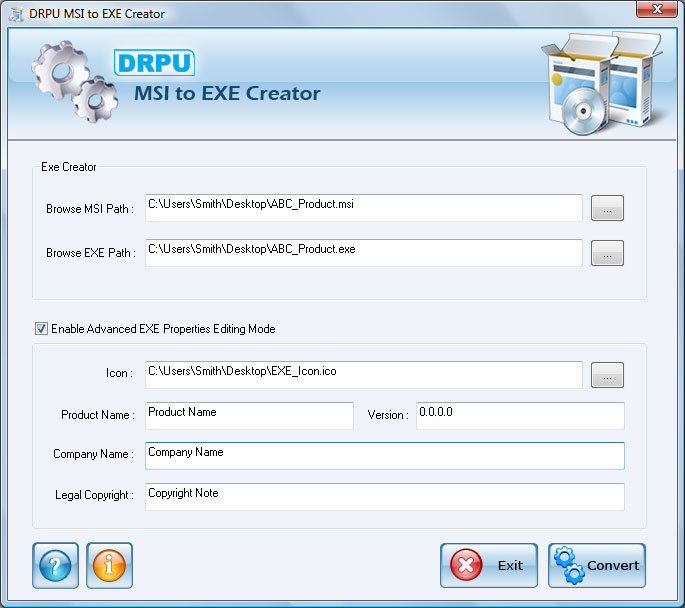
MSI to EXE Creator is capable of creating .exe file from .msi (Microsoft installer) file easily and affordably. Setup Converter converts your .NET Framework MSI file into .exe (executable) file. Setup Creator software does not affect the original functionality of your application with .msi file extension. Software is capable of converting your default Visual studio .NET Framework MSI file into similar or equivalent .exe file format.

Setup maker facilitates user to save the created .exe file at user specified location on your storage media. Software is a valuable utility for Software developers, Programmers and Coders who have developed their application with .msi extension. Software is very easy to use and allow users to select .msi file and convert it into EXE format windows installer package.

Important Features
  • Software creates EXE setup file from MSI Windows installer file quickly.
  • Does not affect the original functionality of MSI application software!
  • Save the created exe file at specified location on your Computer PC.
  • Software is useful for software developers, programmers or any other user to create or build .exe setup file.
  • Software does not require any technical or non-technical skills to operate the software.

Software Capabilities
Explore the full features and capabilities of MSI to EXE Creator with freeware demo version. Free trial demo can be downloaded to analyse the working of software. Purchase full version to avail full functionality of software.


System Requirement
  • Windows VISTA (Vista Ultimate, Home Premium, Home Basic, Business, Enterprise) / XP (Home Edition, Professional Edition, Media Center Edition, Tablet PC Edition) / ME / 2000 / 2003 Server / 98 / NT operating system.
  • 10 MB of Free disk space
  • Minimum 128 MB of RAM

Download .exe creator.
In MAYA 0 Comments | Readmore...

Thursday, August 11, 2011

Windows Explorer and Internet Explorer Shortcuts

Windows Explorer Shortcuts :
ALT+SPACEBAR - Display the current window’s system menu
SHIFT+F10 - Display the item's context menu
CTRL+ESC - Display the Start menu
ALT+TAB - Switch to the window you last used
ALT+F4 - Close the current window or quit
CTRL+A - Select all items
CTRL+X - Cut selected item(s)
CTRL+C - Copy selected item(s)
CTRL+V - Paste item(s)
CTRL+Z - Undo last action
CTRL+(+) - Automatically resize the columns in the right hand pane
TAB - Move forward through options
ALT+RIGHT ARROW - Move forward to a previous view
ALT+LEFT ARROW - Move backward to a previous view
SHIFT+DELETE - Delete an item immediately (Permanent)
BACKSPACE - View the folder one level up
ALT+ENTER - View an item’s properties
F10 - Activate the menu bar in programs
F6 - Switch between left and right panes
F5 - Refresh window contents
F3 - Display Find application
F2 - Rename selected item

Internet Explorer Shortcuts :
CTRL+A - Select all items on the current page
CTRL+D - Add the current page to your Favorites
CTRL+E - Open the Search bar
CTRL+F - Find on this page
CTRL+H - Open the History bar
CTRL+I - Open the Favorites bar
CTRL+N - Open a new window
CTRL+O - Go to a new location
CTRL+P - Print the current page or active frame
CTRL+S - Save the current page
CTRL+W - Close current browser window
CTRL+ENTER - Adds the http://www. (url) .com
SHIFT+CLICK - Open link in new window
BACKSPACE - Go to the previous page
ALT+HOME - Go to your Home page
HOME - Move to the beginning of a document
TAB - Move forward through items on a page
END - Move to the end of a document
ESC - Stop downloading a page
F11 - Toggle full-screen view
F5 - Refresh the current page
F4 - Display list of typed addresses
F6 - Change Address bar and page focus
ALT+RIGHT ARROW - Go to the next page
SHIFT+CTRL+TAB - Move back between frames
SHIFT+F10 - Display a shortcut menu for a link
SHIFT+TAB - Move back through the items on a page
CTRL+TAB - Move forward between frames
CTRL+C - Copy selected items to the clipboard
CTRL+V - Insert contents of the clipboard
ENTER - Activate a selected link
HOME - Move to the beginning of a document
END - Move to the end of a document
F1 - Display Internet Explorer Help
In MAYA 0 Comments | Readmore...

Friday, August 5, 2011

Facebook photo downloader

Backup your Facebook photos
You may download your albums and even photos where you have been tagged.
Pick&Zip is a totally free backup online tool that will allow you downloading photos from Facebook in a single zip or pdf file.

Download tagged photos of you
With Pick&Zip you can download photos where you have been tagged even if you have not uploaded them.

Backup your pictures
Pick&Zip is a great solution to backup all your Facebook photos, with just a few clicks you can download all your albums and tagged photos.

Build your selection
If so you prefer, you can make a selection of the pictures you like best among your own, your fan pages and those of the groups you belong.

to start download go to here : http://www.picknzip.com/

In MAYA 0 Comments | Readmore...

Wednesday, August 3, 2011

How to encrypt USB Flash Drive with TrueCrypt ?

Do you have data on your USB drive that could be accessed by someone if they found your key drive?
Do you have sensitive data that you need to protect, but don’t want to pay for expensive software?
TrueCrypt was designed for you and in this section you’ll learn how to use it.

NOTE: Do not encrypt the entire drive your OS is stored on. You can encrypt parts of the drive,
but not system files.

Download TrueCrypt :
1. Dowload TrueCrypt
2. Run the installer.
3. When prompted, select Extract and click Next
4. Extract the files to your USB key drive in a folder named TrueCrypt
You can delete other files in the directory if u wish..
Ensure you keep the four files as depicted above

To Encrypt part of your USB drive:
1. Run TrueCrypt.exe.
2. Once loaded, specify a drive letter that will become the encrypted volume (the drive letter of your USB drive won’t change—but will show as two different drive letters when you complete this tutorial)
3. Click Create Volume . Your USB drive will still keep its letter (e.g ."R") will be split into two virtual drives (so the encrypted data will appear as a “[your chosen letter]” drive in Computer after you finish the setup)
4. Now click Create a standard TrueCrypt volume and click Next.
5. The next screen will ask you where you want to store the volume. Save a file named Container in the TrueCrypt folder on your USB thumb drive and click Next
6. Specify the size of the encrypted volume (I suggest you use 1/2 the size of the drive)
7. Create a secure password.
8. Now click Format and your Container will be formatted.
9. After a confirmation message, click Exit
When you are done, go back to TrueCrypt and Click Dismount. Congratulations, you now have your data encrypted on your USB drive.


To Verify Your Encrypted Drive Works:
1. Go to your Computer and look for a "W" (or letter you choose)drive.Its not there good news!
2. Open TrueCrypt.
3. Click the drive letter you chose in the previous steps.
4. Click Select File and find your Container you created.
5. Click Mount
6. Type in your password and click OK and your volume will mount.
7. Go to Computer and your drive will be there

Latest Stable Version - 7.0a, and available on Windows 7/Vista/XP/2000, Mac OS X (32-bit), and Linux.
In MAYA 0 Comments | Readmore...

Monday, August 1, 2011

Pin / move items to the taskbar

Remember, the Windows 7 taskbar doesn’t just contain buttons for running applications and other open windows. In this Windows version, the taskbar can also contain pinned shortcuts for applications, folders, documents, and other items. As shown in Figure, different types of taskbar buttons look different.

The Explorer button represents a pinned taskbar shortcut, and because no Explorer windows are open, its button appears to float on the taskbar, without any border. The Windows Media Player button, however, has a single rectangular border around it. This means that the Media Player application is active and running. And the Internet Explorer button has a bigger, more 3D border, indicating that multiple IE windows and/or tabs are open.

By default, Windows 7 pins three buttons to the taskbar for you: IE, Explorer, and Windows Media Player. But you can pin your own items to the taskbar, and you can unpin the default buttons if you don’t want them there.

There are a few ways to pin an item to the taskbar. The most obvious is to open the Start menu’s MRU or All Programs list, navigate to the shortcut you want, right-click it, and choose Pin to Taskbar from the pop-up menu that appears, as shown in Figure.

If you pin an item from the Start menu MRU to the taskbar, it will no longer appear in the Start menu . So if you’d like to also pin this item to the Start menu, you have dig deeper into the Start menu’s All Programs list to find it.

You can also drag and drop items onto the taskbar to pin them. As shown in Figure, the system will alert you that dropping the item will cause it to be pinned.
In MAYA 0 Comments | Readmore...

Security for your system

UserGate is a complex solution for sharing Internet access among employees in your company, making traffic calculations, and protecting your local network against malicious activity and software, such as hacker attacks, viruses and Trojans.

UserGate is a flexible yet very powerful program that can be used in small and midsized companies instead of relying on large and expensive hardware or software alternatives. With UserGate, you can enforce as strict an Internet access policy as you want, to ensure that the Internet is used appropriately in your company.

The integrated BrightCloud Service allows you to apply web filters, and helps boost employee productivity by giving you total control over what sites your employees can access.


Key features:
• Dual antivirus protection
• Advanced firewall
• Advanced NAT driver
• VPN connection support
• User-based access management
• Categorized URL filtering
• Application filtering
• Speed limitations and traffic quotas
• Traffic monitoring and reporting
• Web statistics client
• Billing system
• Internet connection sharing
• Proxy servers
• Multiple ISPs and connection failover
• Traffic manager
• Web caching
• IP telephony support
• DHCP server support
• Routing
• Resource publishing
• Remote administration

Now, you can download any photo, video with security.
Download UserGate.
In MAYA 0 Comments | Readmore...